Using GCash to Deposit at Emerald Empire: Beginner Walkthrough
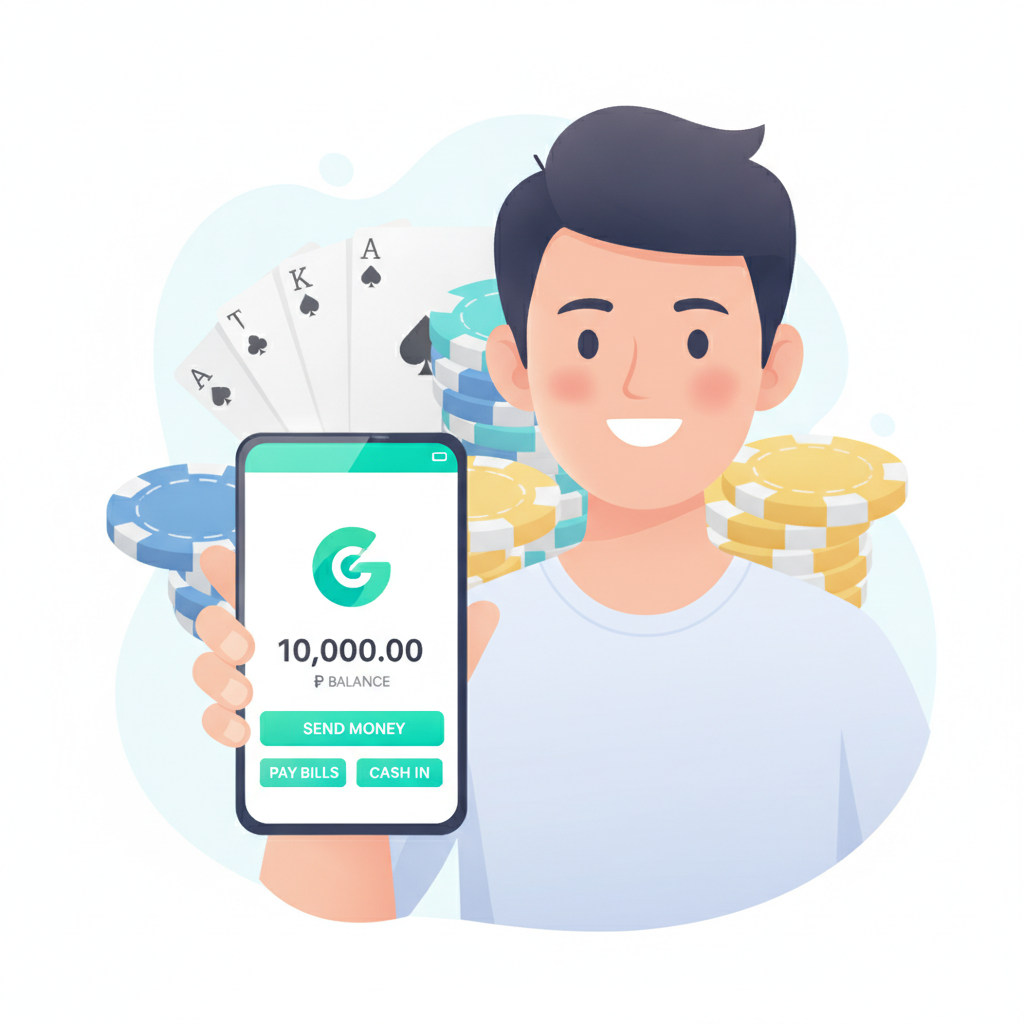
Using GCash to Deposit at Emerald Empire: Beginner Walkthrough
If you're new to Emerald Empire and want to fund your account using GCash, this guide walks you through the entire deposit process—from opening the cashier to seeing pesos land in your casino balance. Whether you're planning to try slots, live dealer tables, or PBA betting, GCash is one of the fastest ways to get started.
This is an independent guide for Filipino players. Emerald Empire is a separate operator. You must be 21 years or older to register and play.
Why GCash is Popular for Online Casino Deposits in the Philippines
GCash has become the default e-wallet for millions of Filipinos, and online casinos have followed suit. Here's why it works well for Emerald Empire deposits:
Instant transfers. When you confirm a GCash payment, the money typically appears in your Emerald Empire account within seconds. You won't wait hours like you might with some bank methods.
No extra app required. If you already use GCash to pay bills, buy load, or send money to friends, you can use the same app and balance for casino deposits. There's no need to sign up for a separate payment service.
Low minimum amounts. GCash lets you move small sums—perfect if you only want to deposit PHP 100 or PHP 200 to test a few slot spins or a live baccarat table before committing more.
Widely accepted. Beyond Emerald Empire, GCash works at most Philippine-facing online casinos, so the deposit flow you learn here will look familiar elsewhere.
Mobile-first design. Because GCash is built for smartphones, the entire process—from logging in to confirming the payment—fits naturally on an Android screen. You won't need to switch to a desktop computer or squint at tiny buttons.
For first-time online casino users, GCash removes a lot of friction. You're using a payment method you already trust, and the steps mirror everyday transactions like paying for grab rides or splitting a restaurant bill.
Linking Your GCash Account or Entering Your Mobile Number
Once you've registered an Emerald Empire account and verified your ID, you're ready to make your first deposit. Here's how to connect GCash:
- Log in to Emerald Empire. Open the site on your mobile browser (or the app if you've installed it) and tap the login button. Enter your username and password.
- Go to the Deposit or Cashier page. Look for a button labeled "Deposit," "Cashier," or a peso (₱) symbol, usually in the top-right corner or main menu. Tap it to open the deposit screen.
- Select GCash as your payment method. You'll see a list of options—GCash, Maya, bank transfer, and others. Tap the GCash icon or text link.
- Enter your GCash-registered mobile number. Emerald Empire will ask for the 11-digit number tied to your GCash account (the number you use to log in to the GCash app). Type it carefully; a single wrong digit will cause the transaction to fail.
- Example format: 09171234567
- Do not add +63 or spaces; stick to the 11-digit local format unless the form specifies otherwise.
- Confirm the number. Some platforms show a preview screen where you can double-check the mobile number before proceeding. Take a moment to verify it matches your GCash account exactly.
At this stage, you haven't sent any money yet—you've simply told Emerald Empire which GCash wallet to link. The actual transfer happens in the next step.
Entering Deposit Amount and Confirming the Transaction
Now you'll choose how much to deposit and authorize the payment inside the GCash app.
- Set your deposit amount. Emerald Empire will display a field where you type the peso amount. Most platforms set a minimum—often PHP 100 or PHP 200—and a maximum per transaction, such as PHP 10,000 or PHP 50,000. If you're making your first deposit, start small (PHP 100–500) so you can practice the flow without risking a large sum.
- Review any fees. In most cases, GCash deposits at Emerald Empire are free, meaning you deposit PHP 200 and PHP 200 arrives in your casino balance. Occasionally a payment gateway charges a small percentage; if so, the screen will show the final amount deducted from your GCash wallet before you confirm.
- Tap "Proceed," "Deposit," or "Continue." The exact button label varies, but the action is the same: you're telling Emerald Empire to generate a payment request.
- Authorize in the GCash app. Your phone will either:
- Redirect you straight into the GCash app (if you have it installed), or
- Open a GCash web-payment page where you log in with your MPIN.
Both paths lead to the same GCash confirmation screen, showing the merchant name (Emerald Empire or the payment processor it uses), the peso amount, and a prompt for your six-digit MPIN.
- Enter your GCash MPIN. Type the six-digit code you created when you set up GCash. This authorizes the transfer. Do not share this PIN with anyone, including customer-support agents.
- Wait for the success message. GCash will display a green check mark or "Payment Successful" screen. Screenshot this if you want a record, then tap "Done" or the back button to return to Emerald Empire.
The entire process—from selecting GCash to seeing the success screen—usually takes under a minute if your GCash balance is loaded and your mobile signal is stable.
Checking Your Emerald Empire Balance After Deposit
After GCash confirms the payment, you should see the pesos appear in your Emerald Empire account almost immediately.
- Return to the Emerald Empire homepage or cashier. If the site didn't auto-refresh, tap the back arrow or home button to leave the deposit page.
- Look for your balance display. Most casino sites show your current peso balance in the top-right corner, next to your username. It might be labeled "Balance," "Wallet," or simply display a number like ₱500.00.
- Refresh if needed. If the balance still shows zero, try pulling down to refresh the page or tapping the balance area. Deposits are usually instant, but during peak hours—weekend evenings or major sports events—there can be a delay of one to three minutes.
- Check transaction history. Navigate to "My Account," "Transaction History," or "Deposit History" to see a timestamped record of your GCash deposit. This log is useful if you ever need to verify amounts or contact support.
- Start playing. Once the balance updates, you can head to slots, live dealer tables, or the sportsbook and place your first bets. Remember that some game categories may have different minimum-bet requirements; slots often start at PHP 1 per spin, while live baccarat tables might require PHP 100 or more per hand.
If ten minutes pass and your balance hasn't updated, double-check your GCash transaction history to confirm the payment left your wallet. If GCash deducted the money but Emerald Empire shows nothing, contact Emerald Empire support with your GCash reference number and a screenshot of the successful payment.
What to Do If Your First Deposit Doesn't Appear
Problems are rare, but here's a quick troubleshooting checklist:
- Wrong mobile number. If you typed a digit incorrectly, the pesos may have gone to someone else's GCash account or bounced back. Check your GCash transaction list; if the payment shows "Failed" or "Reversed," the money will return to your wallet within a few hours.
- Insufficient GCash balance. Verify you had enough pesos in GCash to cover the deposit. Partial payments usually aren't processed.
- Emerald Empire account name mismatch. Some platforms require that the name on your GCash account matches the name you used during Emerald Empire registration. If they don't match, the casino may freeze the deposit pending ID verification.
- Server delay. During extremely busy periods—big basketball games, holiday weekends—payment gateways can slow down. Wait five to ten minutes, then refresh.
If none of these apply and your money is still missing, use Emerald Empire's live chat or email support. Have your GCash reference number, the exact deposit amount, and the date and time ready. Most issues are resolved within a few hours.
Building Good Deposit Habits
Once you've completed your first GCash deposit successfully, future top-ups become routine. A few tips for staying in control:
- Set a monthly budget. Decide in advance how much you're comfortable depositing each month, and stick to it. Treat online casino play as entertainment, not a way to make money.
- Use GCash's spending tracker. The GCash app lets you review transaction history by category. Check it weekly to see how much you're sending to Emerald Empire.
- Avoid chasing losses. If you lose your initial deposit, resist the urge to reload immediately in hopes of winning it back. Take a break, review your bets, and return when you're calm.
- Keep your MPIN private. Never share your six-digit GCash code with anyone. Legitimate casino staff will never ask for it.
By mastering the GCash deposit flow early, you free yourself to focus on learning game rules, understanding odds, and enjoying the experience without payment-related stress.
21+ Only and Responsible Gambling Reminder
Emerald Empire is restricted to players who are 21 years of age or older. Online casino games and sports betting carry real financial risk. Only deposit money you can afford to lose, and never gamble to solve financial problems.
If you feel your play is becoming difficult to control, consider setting deposit limits in your Emerald Empire account settings or reaching out to local responsible-gambling resources. Taking breaks and keeping gambling as occasional entertainment—not a daily habit—helps ensure the experience stays fun.
Ready to make your first deposit? Log in to Emerald Empire, tap the cashier, select GCash, and follow the steps above. Within seconds, you'll have pesos in your account and a full casino floor at your fingertips. Good luck, play responsibly, and enjoy the games.